Debugging & Visualization
When a test fails (or passes when it shouldn't), you need to see exactly what QWeb is seeing.
1. Visualizing Search (Highlighting)
By default, QWeb draws a blue rectangle around every element it finds and interacts with. This gives you immediate visual confirmation that your specific locator (like ClickText Sign In) is targeting the correct element.
Customizing the Highlight
If the default blue color clashes with your application's theme, or if you want to make it more visible, you can change the color.
Disabling Highlighting
For production runs where performance is paramount, or if the highlighting interferes with screenshots, you can turn it off.
Slow Motion
If the highlight flashes too quickly for you to see, you can combine it with a small delay to follow the execution visually:
SetConfig Delay 1s
2. On-Screen Messages (Toast)
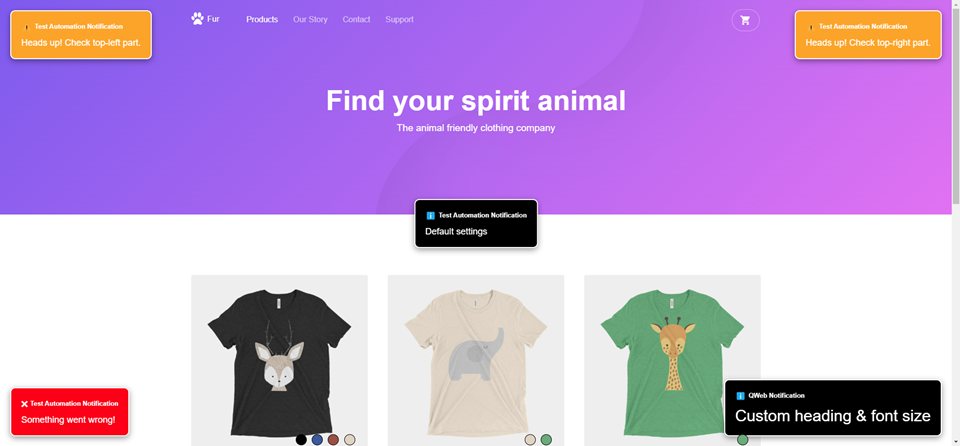
When watching a screen recording of a test execution, it is often difficult to know exactly which step is currently running.
The ToastNotify keyword displays a temporary notification banner directly on the browser screen. This effectively adds "Subtitles" to your test execution video.
Why use it?
- Video Debugging: Provides visual context in recordings (e.g., "Creating User...", "Verifying Order...").
- Demos: Helps stakeholders follow the automation flow without reading the code/logs.
# Syntax: ToastNotify    Message

# Mark the start of a major test phase
ToastNotify    Starting Login Sequence...

# A long wait, position and notification level
ToastNotify    Waiting up to 60s for email to arrive
VerifyText     Reset Password    level=warning    position=top-right   timeout=60
message : str
    Notification message to display.
level : str, optional
    Type of notification. Options: "info" (default), "success", "warning", "error".
position : str, optional
    Position of the toast. Options: "center" (default), "top-left", "top-right", "bottom-left", "bottom-right".
font_size : int, optional
    Font size of the notification text. Default is 18.
heading : str, optional
    Heading text of the notification. Default is "Test Automation Notification".
timeout : int, optional
    Duration in seconds before the notification disappears. Default is 3 seconds.
3. Common Troubleshooting
If QWeb cannot find an element, check these three common culprits:
A. Is it inside a Shadow DOM?
Standard XPaths cannot see inside Shadow roots.
* Fix: Use SetConfig ShadowDOM True or switch to text-based locators (ClickText).
B. Is it technically "Invisible"?
Sometimes elements have zero opacity or are hidden by CSS, but you still need to interact with them (e.g., file upload inputs).
* Fix: SetConfig Visibility False (Tells QWeb to search hidden elements too).
C. Is it off-screen?
QWeb generally scrolls elements into view automatically. However, some "sticky" headers or footers might cover the element.
* Fix: Try SetConfig InViewport True to force stricter visibility checks.
3. Taking Screenshots
QWeb automatically takes a screenshot on failure. You can also manually capture the state at any point.